
Installing MultiWalk
In the following tutorial video I walk through the steps to install MultiWalk in TradeStation 10. I offer comments on each step, describing the different folders that MultiWalk uses as well as important considerations on the installation process.
Installing MultiWalk
Important –> FIRST, exit any workspaces that contain MultiWalk projects or, to be safe, simply exit TradeStation.
Download the current release of MultiWalk from MultiWalk’s Download Page and run the installation program. If your Windows login does not have Admin Rights, run the installation program with Admin Rights by right-clicking the installation program and selecting “Run as administrator”:

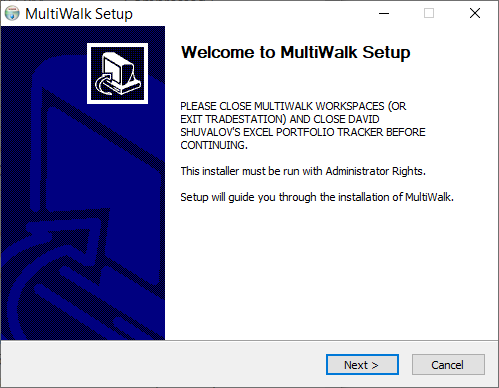
You will be presented with the following setup screens.
There are several important folders concerning the installation of MultiWalk. Keep them all separate. Do not use the same folder for any of the installation prompts.
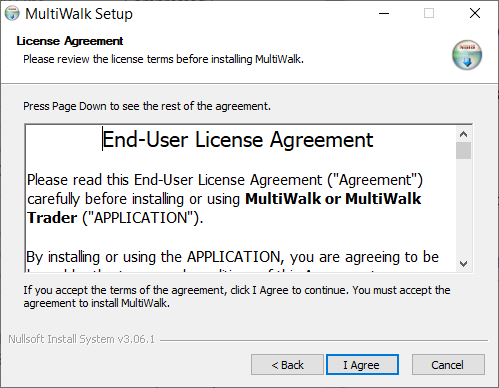
Click “I Agree”
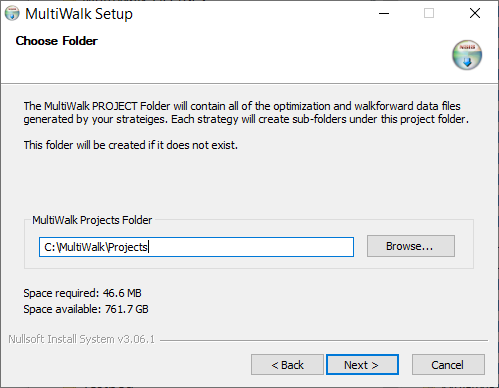
This is the main MultiWalk projects folder. All your strategy projects will be written within this folder.
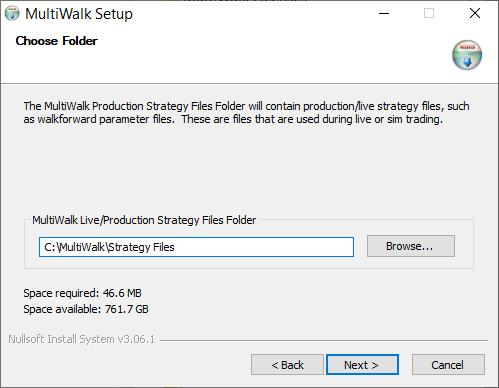
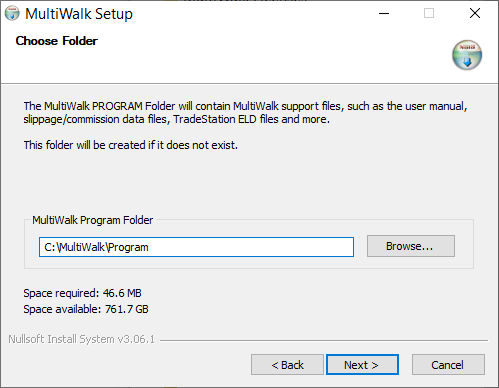
This is the MultiWalk program folder. It is managed by MultiWalk and includes various program files, such as DLLs, configurations, symbol database and more.
Do make this folder the same as TradeStation’s program folder. Install MultiWalk in its own program folder as above.
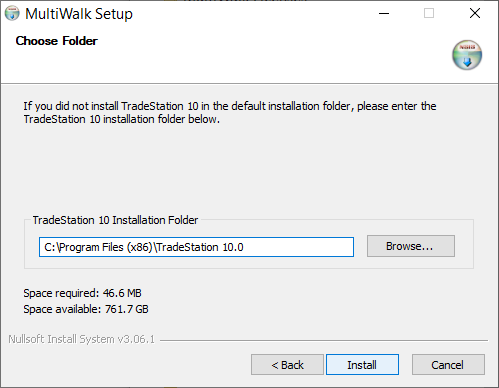
This is the folder where TradeStation is installed on your system. Make sure that you reference the correct TradeStation folder used when you installed TradeStation on your system. The usual default location is “C:\Program Files (x86)\TradeStation 10.0
Click Install.
Importing MultiWalk ELDs into TradeStation
If there are no errors, then the MultiWalk Program folder will automatically open. It will contain the ELD files you will need to import into TradeStation.
Import the following ELDs into TradeStation:
- MULTIWALK APP.ELD
- MULTIWALK USER FUNCTIONS.ELD
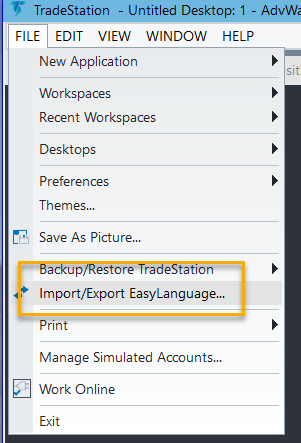
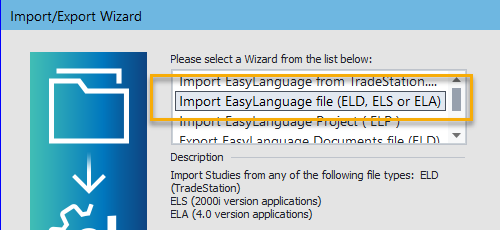
You can either double-click on the ELD names in the open folder to import them into TradeStation, or use TradeStation directly to import the files:
Installing your MultiWalk License
Once MultiWalk is installed, see this article for instructions on installing your license key file.