
Creating Multiple Default Configuration Settings
MultiWalk and MultiWalk Trader give you the ability to create default configuration settings that will be loaded whenever a new project is created.
There are times that you may want different configurations for different purposes — such as a intraday or swing trading configurations, separate configurations for indexes, metals, ags, etc. This is possible using the Configuration/Setup Import feature in MW and MWT.
Simply follow these steps:
1. Add MW or MWT to a workspace. This will create a new, blank project (no strategy code or strategy associated with the project)
2. Configure the settings the way that you want for the designated purpose (day, swing trading, indexes, etc)
3. Save this configuration as the default and make a note of where it was saved (X:\MultiWalk\Program Beta\MultiWalkSetup.txt in my case)
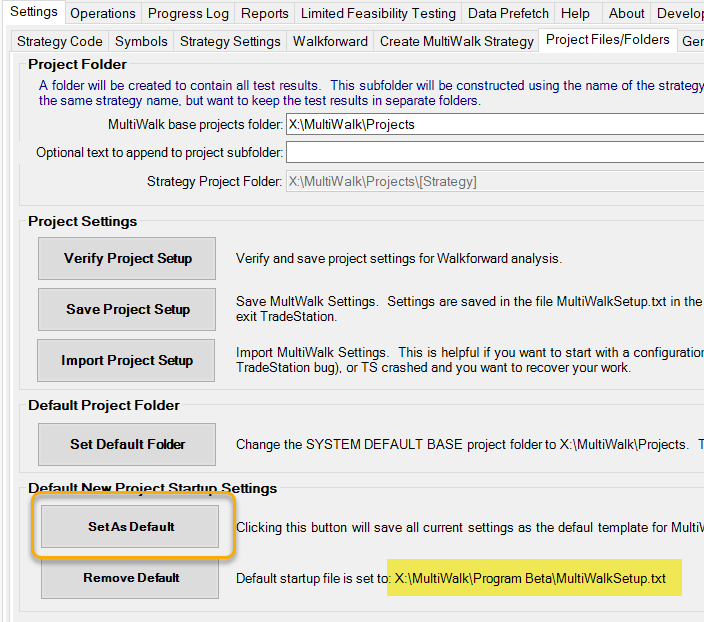
4. Open a windows explorer and navigate to the program folder.
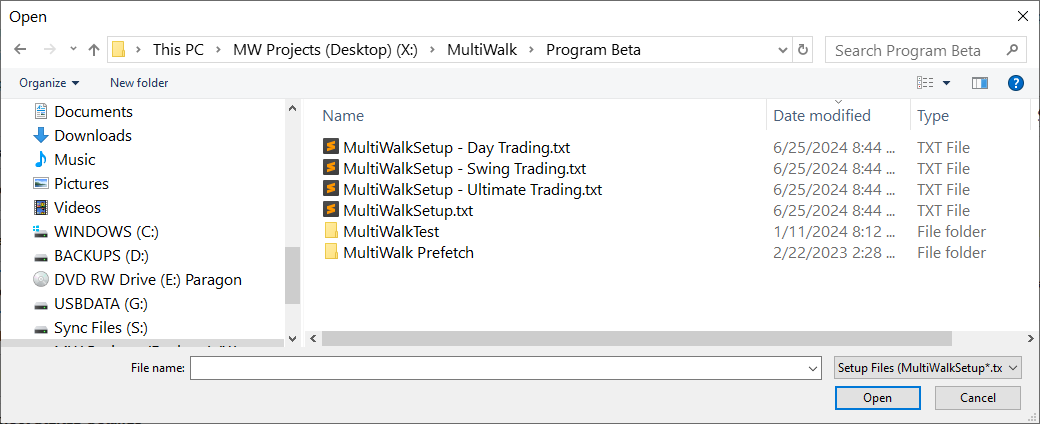
5. Copy the MultiWalkSetup.txt file to a new name, but make sure it starts with MultiWalkSetup (for MW) or MultiWalkTraderSetup (for MWT) so that the import feature can “see” the files. For example, I copied it to “MultiWalkSetup – Day Trading.txt”.
6. Repeat this process for each different configuration that you want. I ended up with the following configuration files:
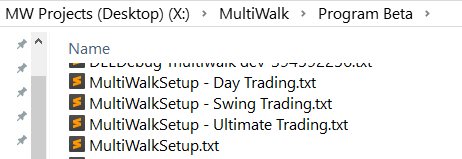
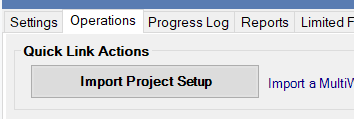
Now, when you want to start a new project, simply import the setup file that you want! You can use the import button either from the Operations screen or the Settings->Project Files/Folders screen:
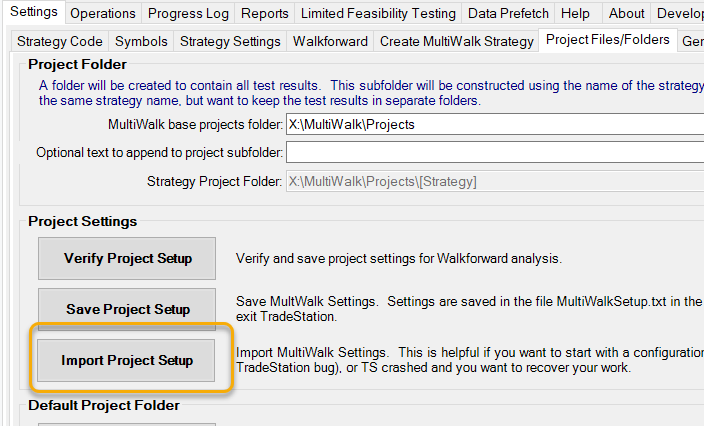
Navigate to the program folder and load the configuration file:
That’s it! You now have the choice of multiple default configuration setups!