
Report Viewer: Report Actions, Columns and Layouts
The Report Actions panel of the MultiWalk Report Viewer holds the actions that work on the whole report: exporting, reloading, columns and layouts, and the actions on marked rows. This article goes through the panel in its own order, so it can be read with the panel open beside it.
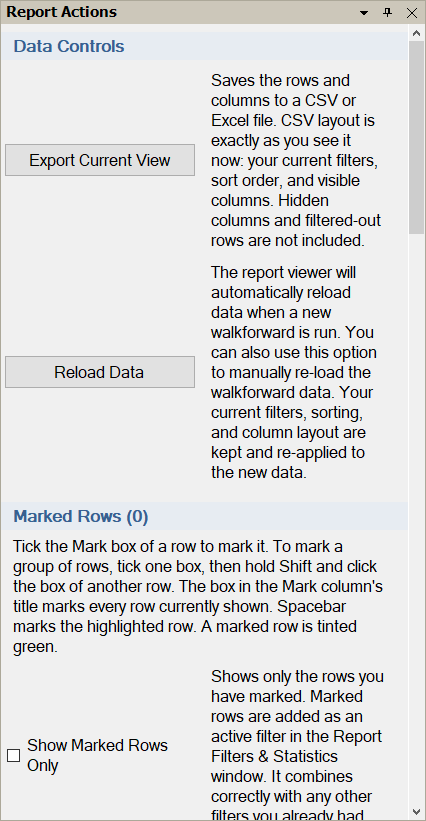
Click Report Actions in the strip above the grid to open the panel. It docks at the left of the window. It is closed each time the viewer opens; close it again with the X in its title bar. Each control in the panel has a short help text beside it.
The actions work on the tab in front, except the layout actions, which cover both tabs and the panels.
Data Controls
Export Current View
Export Current View saves the tab’s rows to a file. In the Save dialog choose the file type: CSV file (*.csv) or Excel workbook (*.xlsx). The file name starts as “Report View”.
- The file holds the rows shown now, after every filter, in the current sort order.
- It holds the columns shown now, in their current order. Hidden columns are left out.
- In a CSV file the values are written without formatting: numbers without “$”, “%” or thousands separators, in full precision, and dates as MM/DD/YYYY.
Reload Data
Reload Data reads the project’s reports again. Your filters, sort order, column layout and the Limit to Averaged Groups box are kept and applied to the new data. The detail panels show the new data from the next click on a row.
The viewer also reloads by itself when MultiWalk has written new reports for the project, for example after the project has been run again.
Marked Rows
The Marked Rows section shows the number of marked rows in its heading, for example “Marked Rows (3)”. It holds Show Marked Rows Only, Clear All Marks, Create MultiWalk Project From Marked Rows, Create Strategy Code Files For Marked Rows and Export Marked Rows. The buttons are greyed until a row is marked. On the Averaged Groups tab the section says that rows cannot be marked on that tab.
All of it is described in Report Viewer: Marking Rows and Working With Marked Rows.
Columns
Hide/Unhide Columns
Hide/Unhide Columns opens a list of the tab’s columns. A ticked column is shown, an unticked one is hidden.
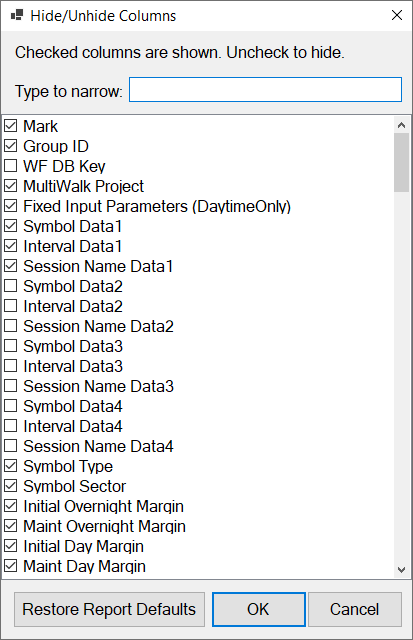
- Type to narrow: lists only the columns whose title contains the text you type. Narrowing the list does not change any tick.
- Restore Report Defaults sets every tick back to the columns the report shows by default.
- OK applies the ticks, including those of columns the narrowed list does not show. Cancel changes nothing.
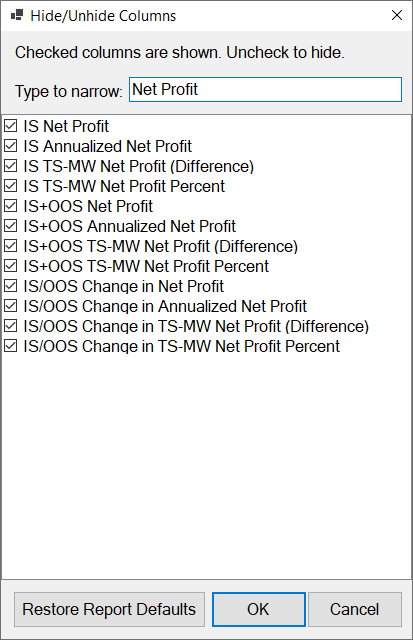
A column that is hidden has no line in the statistics, is left out of Export Current View, and is not searched by a value search.
Moving and resizing columns
- Drag a column title left or right to move the column.
- Drag the divider between two column titles to change a column’s width. A column cannot be made narrower than the longest word of its title.
- The Mark column cannot be moved or resized. It stays at the left while the other columns scroll.
The columns’ visibility, order and widths are saved with the project.
Find Columns/Rows
Find Columns/Rows opens the Find bar, as Ctrl+F does. See Find.
Layout Controls
The layout of a project is the visibility, order and width of the columns on both tabs, the arrangement of the docked panels, and the window’s size and position. The viewer saves it for each project by itself, a moment after each change and when the window closes. Filters and the sort order are saved with it but are not part of a default layout.
| Button | What it changes | What it leaves alone |
|---|---|---|
| Save Layout As Default | Saves the current column layout, panel arrangement and window size as the default layout. A project opened in the viewer for the first time starts with it. | Projects already opened in the viewer keep their own layout. Filters, sort order and Limit to Averaged Groups are not part of the default. |
| Delete Default Layout | Deletes the saved default layout. Projects opened for the first time then start with the viewer’s built-in layout. | The open window, and every project already opened in the viewer. |
| Reset Layout | Sets this project’s column layout and panel arrangement back to your saved default layout, or to the built-in layout when you have not saved one. | Filters, sort order, Limit to Averaged Groups, the window’s size and position, and whether the Report Actions panel is open. |
Each of the three asks you to confirm first. Save Layout As Default then says where the default was saved.
The built-in layout has the Report Filters & Statistics panel open at the right, the detail panels in one docked group at the right, closed until a row is clicked, and the Report Actions panel closed at the left.
Where the viewer keeps its files
In the project’s Walkforward Files folder, the viewer keeps three small files of its own:
- ReportViewerStateWalkforward.json – the columns, filters, sort order, the Limit to Averaged Groups box and the window’s size and position.
- ReportViewerDockLayoutWalkforward.xml – the arrangement of the docked panels.
- ReportViewerMarkedRows.txt – the marked rows.
They stay with the project when it is copied or moved. With the viewer closed, deleting the first two makes the project open with the default layout and no filters the next time; deleting the third removes the marks.
The default layout saved by Save Layout As Default is kept in the MultiWalk program folder, in the files ReportViewerDefaultStateWalkforward.json and ReportViewerDefaultDockLayoutWalkforward.xml.