
Easter Egg
If you are reading this, then you have probably watched Kevin’s video on using MultiWalk. In the second version of his video, he asked me to create some “tips n tricks” I use that he then added to the video. That full video can be found here. The Easter Egg commentary portion is below, or you can find it at time-mark 10:50 in the full video. I demonstrate how I use the Easter Egg to configure MultiWalk using existing Strategy Factory Club strategies.
What’s An Easter Egg?
The term Easter Egg comes from my gamer days when you would discover a hidden feature in the game — perhaps a hidden level or some other feature that is activated using a special key-combination or code. MultiWalk has its own hidden treasure in the form of a special character combination.
Adding a Strategy Factory Club Strategy
Note that the Easter Egg will only work if the strategy has Kevin’s “Chart Info”, MultiOpt or MulitWalk header notes. if these are missing, then the Easter Egg will not work.
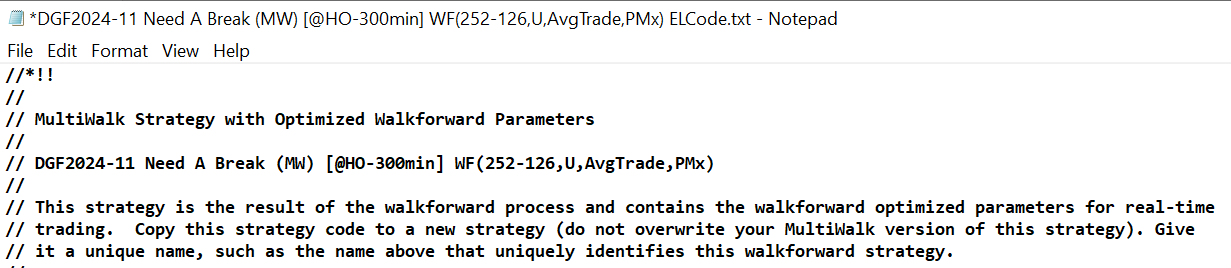
Simply put the following characters //*!! on the first line of the strategy code like I show here in the video:
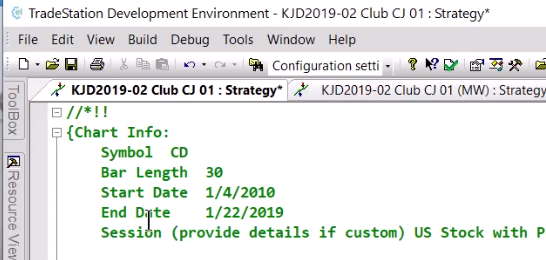
Do not include any other characters.
Then copy the entire strategy (Ctrl-C) and paste it into MultiWalk’s code logic box using the paste button. You must use the paste button or else you cannot unlock this easter egg.
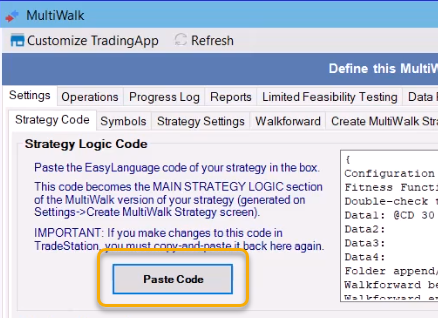
That’s it! MultiWalk will interpret the header notes of the code and most, if not all, of the settings will now be correctly configured in MultiWalk. Some headers do not have all the information needed. For example, the one in the video did not have the variable ranges, so the Easter Egg just put “1-1×1” as a default.
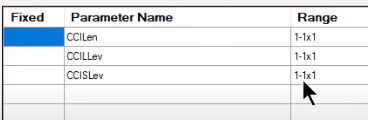
So you will still want to review the different MultiWalk Settings screens to ensure that the settings are correct.
Adding a MultiWalk Walkforward Strategy
Another added benefit of this Easter Egg is the ability to quickly set up a MultiWalk project for a specific walkforward.
Let’s say that you have a large project and want to create a new MultiWalk project based on one of the walkforward strategies.
Simply click on the EasyLanguage Code cell for the walkforward:
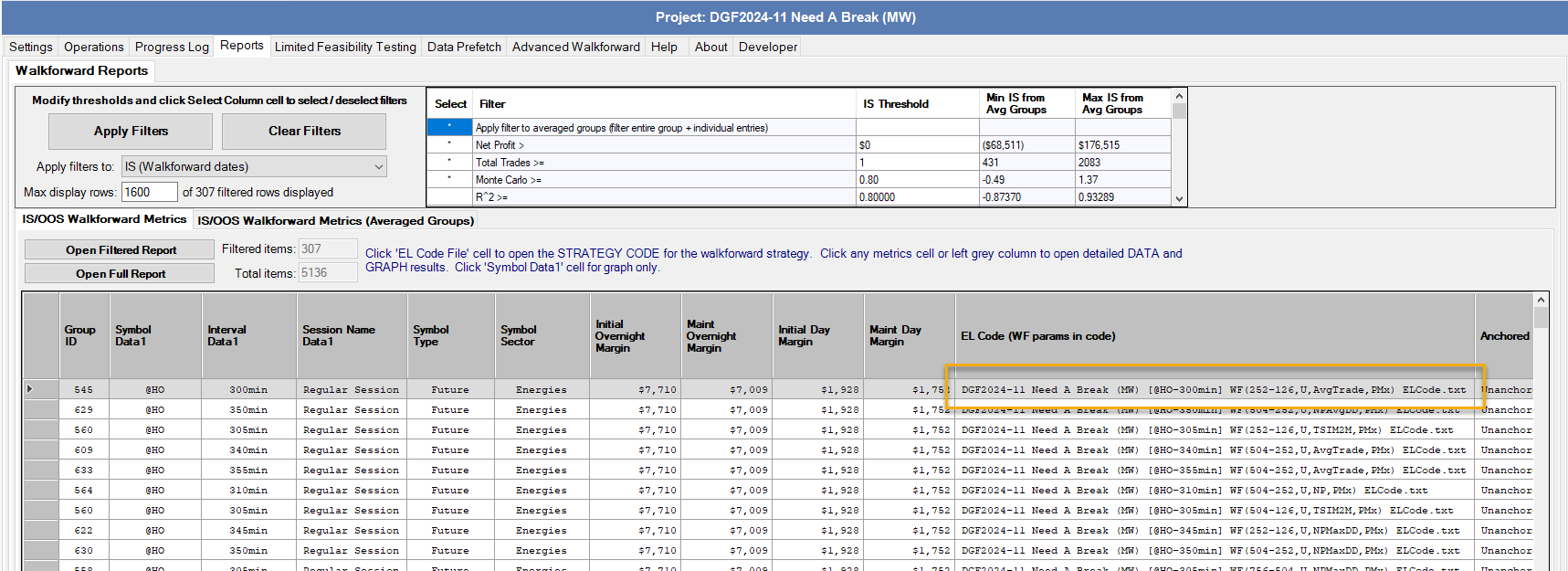
This will open a Notepad window with the strategy:
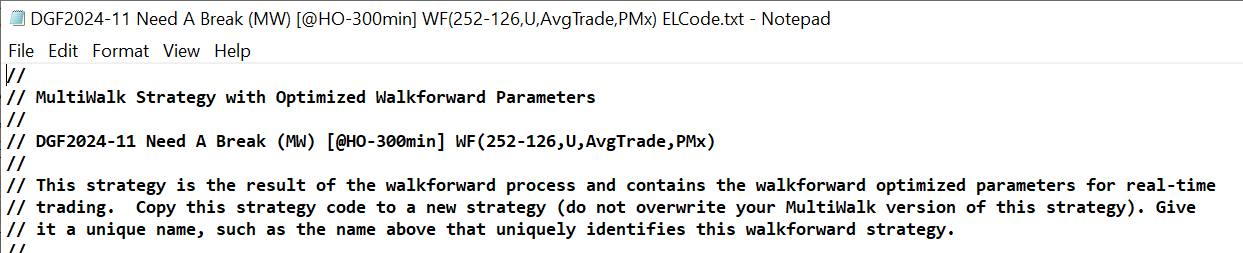
Add the “//*!!” line as the FIRST LINE of the strategy:
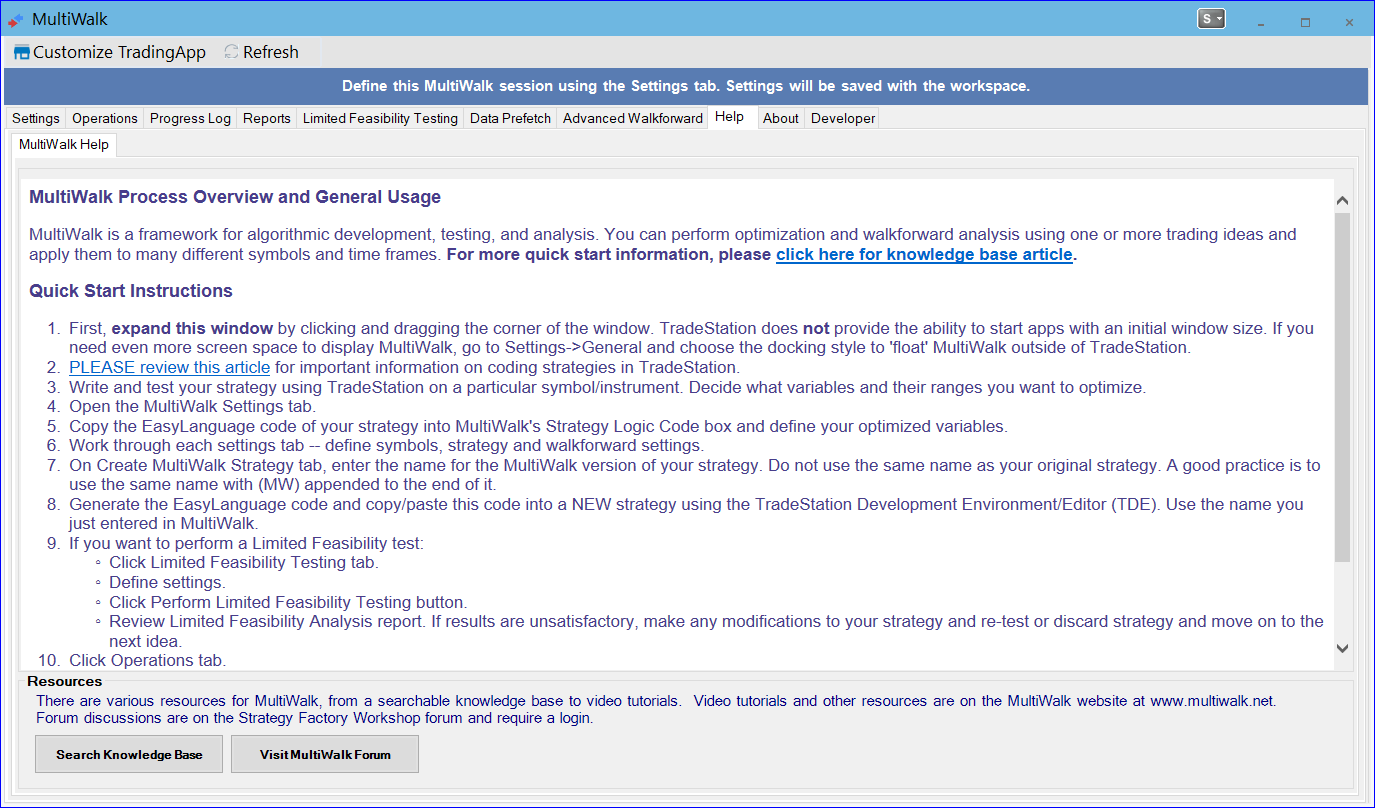
Then, add a new MultiWalk app to the existing or new workspace:
Go to the Settings->Strategy Code screen of the new project and click on the PASTE CODE button (do not use Ctrl-V in the logic code window):
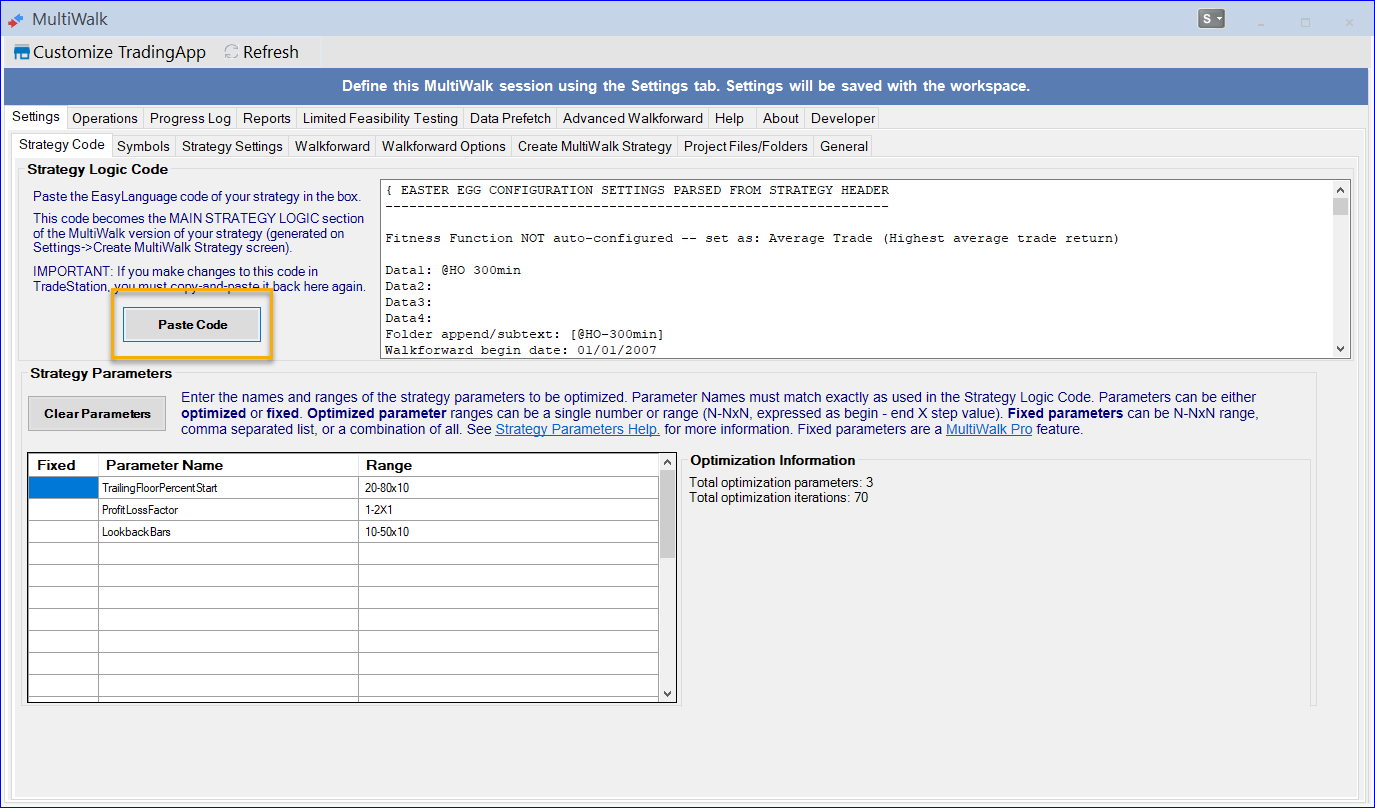
Your project should now be completely configured for this specific walkforward EXCEPT for the fitness function:
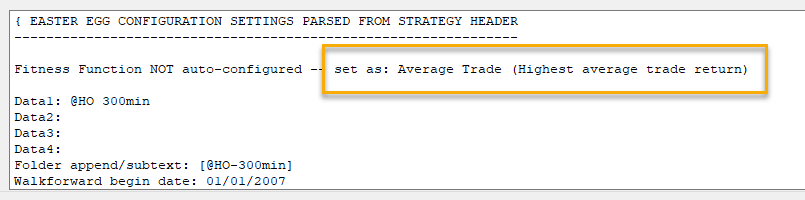
Navigate to the Settings->Walkforward screen to select the correct fitness function or make any other changes you want to the walkforward:
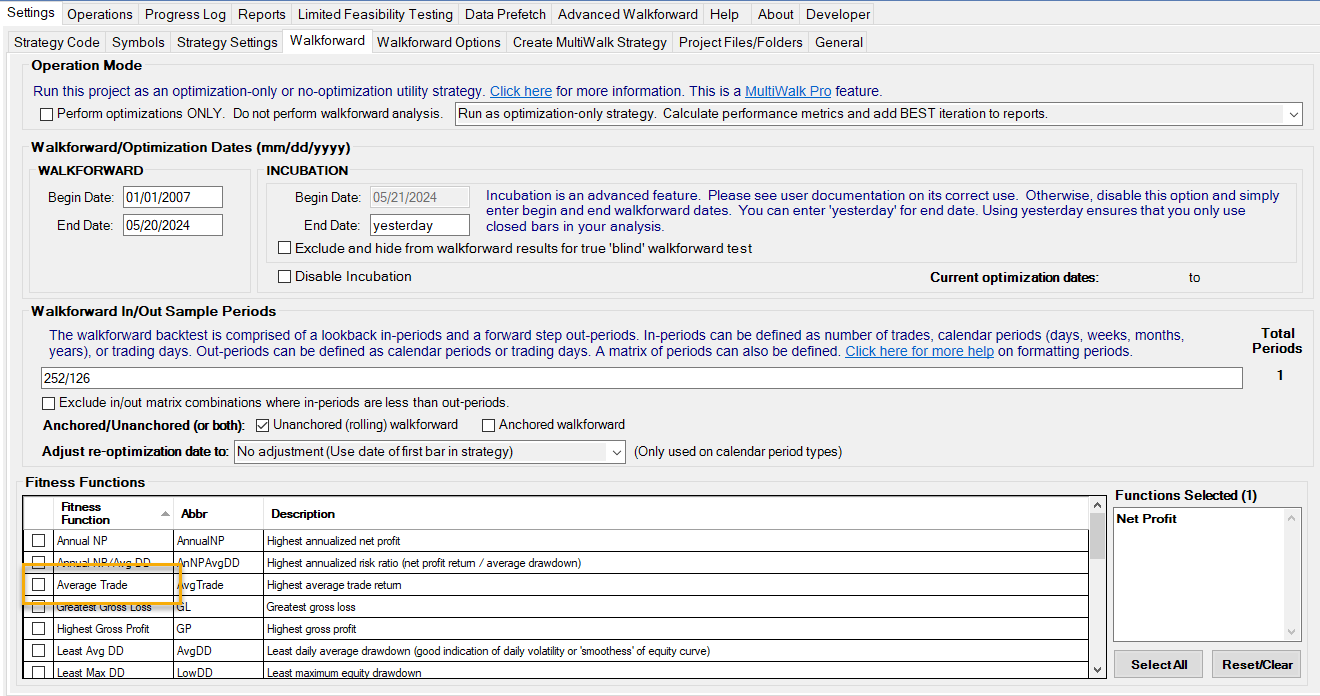
For this project, we would change Net Profit to Average Trade:

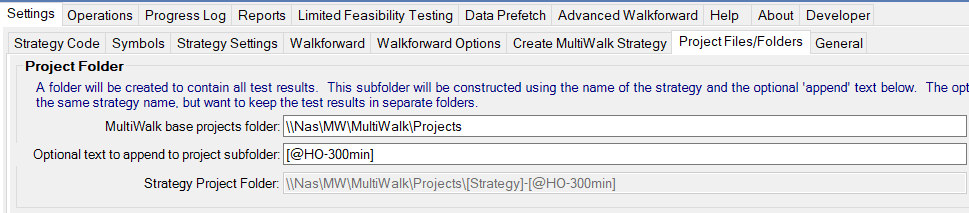
Also review the Project Folder. The Easter Egg will modify it so that it is distinctly different from your original project:
Enjoy this hidden feature!